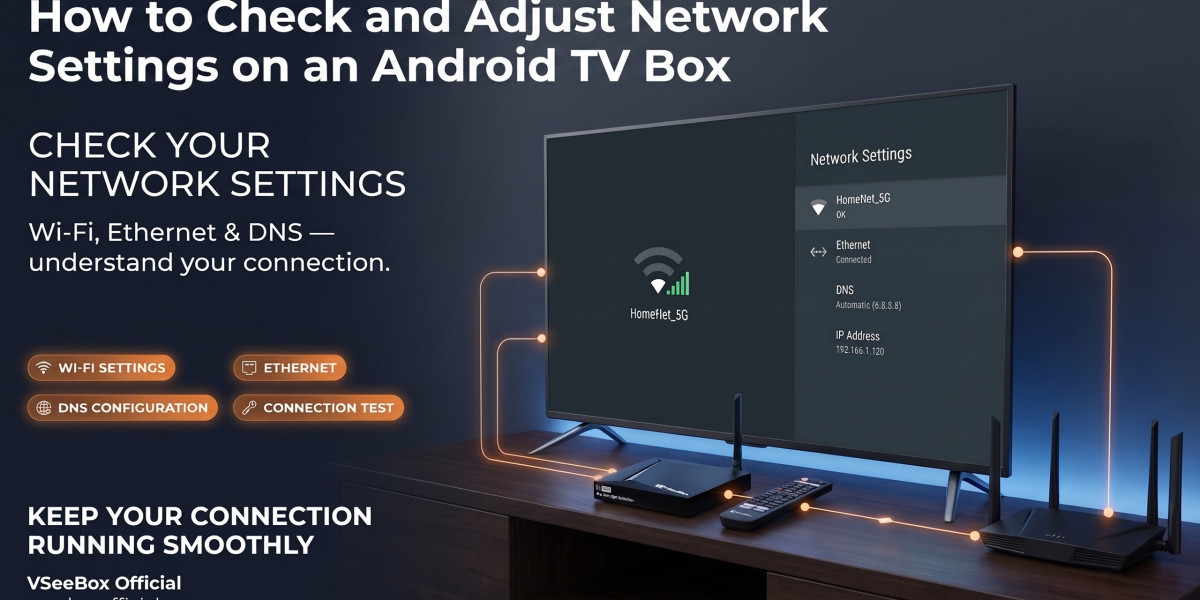

A stable internet connection helps an Android TV box load apps, play online videos, and access internet-based services. However, connection problems can occur even when your router appears to be working normally. You might notice slow loading, repeated buffering, apps failing to connect, or the device disconnecting from Wi-Fi without warning. In some cases, the issue comes from the network settings on the TV box rather than the internet service itself.
Checking these settings gives you a clearer picture of how your device connects to the internet. You can review the current connection, switch between Wi-Fi and Ethernet, update saved network details, and check other available options. Understanding these controls makes it easier to identify connection problems and keep your Android TV box connected.
1. Open the Network Settings Menu
Start by turning on your Android TV box and opening its home screen. Use the remote to navigate to the settings menu. Depending on the device and Android version, network options may appear under Network & Internet, Connections, or a similar section.
Select the network menu to view the available connection options. If your device is already connected to Wi-Fi or Ethernet, the current network status may appear on this screen.
You may find options such as:
Wi-Fi connections and available wireless networks
Ethernet connection status
Saved network details
IP address information
Proxy and other advanced settings
The exact layout varies between models. Some Android TV boxes provide only basic connection controls, while others include additional network configuration options.
2. Check Your Current Internet Connection
Before changing any settings, check how your Android TV box is currently connected. This helps you understand whether the device has joined the network successfully.
If you use Wi-Fi, open the wireless network section and look for the name of your connected network. A connected status usually means the TV box has joined your router, but it does not always confirm that internet access is working properly.
For an Ethernet connection, check the wired network section. The device should show an active connection when the cable is properly connected to both the TV box and router. You can also review the available network information, including:
Network Detail | What It Tells You |
IP Address | Identifies the TV box on the local network |
Gateway | Shows the router address used by the device |
DNS | Identifies the server used to look up website and service addresses |
Signal Strength | Indicates the quality of a Wi-Fi connection |
Connection Status | Shows whether the device is connected to the network |
If the TV box shows a connection but apps cannot access online content, the problem may involve DNS, router settings, or the internet service itself.
3. Connect to or Change a Wi-Fi Network
If your current wireless connection is unstable, you can check other available networks or connect to a different Wi-Fi network.
Open Settings, select Network & Internet, and make sure Wi-Fi is enabled. Your Android TV box should display nearby wireless networks. Choose the correct network name and enter its password when prompted.
If you have recently changed your router password, the TV box may still be trying to use the old saved details. In that case, open the saved network settings and select the option to forget the network. Then search for it again and enter the updated password.
Before connecting, check these points:
Select your own network rather than a similarly named nearby network.
Enter the password carefully, including uppercase and lowercase letters.
Keep the TV box within a reasonable distance of the router.
Check that your router is broadcasting a Wi-Fi band supported by your device.
Some routers offer both 2.4 GHz and 5 GHz networks. The available options and supported bands depend on the hardware in your Android TV box. If one network does not appear, check the device specifications and router settings.
4. Review Ethernet Network Settings
An Ethernet connection uses a physical cable to connect your Android TV box to a router or network switch. It can be useful when Wi-Fi signals are weak or wireless connections frequently drop.
Connect one end of the Ethernet cable to the LAN port on your TV box and the other end to an available router port. Open the network settings and check whether Ethernet is enabled or showing an active connection.
Most home networks use automatic IP configuration through DHCP. This allows the router to assign an IP address to the TV box without requiring manual input.
If your device provides manual network configuration, you may also see options for:
IP address
Gateway
Subnet mask
DNS server
Avoid changing these values unless you understand the network configuration or have received the correct details from your network administrator. Incorrect information can prevent the TV box from accessing the internet.
5. Understand and Adjust DNS Settings
DNS, or Domain Name System, helps a device find the network address associated with a website or online service. When you open an app or access online content, DNS helps translate the service's domain name into an address the device can use.
Some Android TV boxes allow users to change DNS settings manually. This option may be available under advanced Wi-Fi or IP configuration settings. Other models manage DNS automatically through the router.
If manual DNS settings are available, you may be able to enter a different DNS server address. However, changing DNS does not automatically make your internet faster. It may help in specific cases involving DNS errors or problems reaching certain services.
Before making a change, record the original settings. If the new configuration causes connection problems, return to the previous values or select automatic DNS if that option is available.
6. Check Proxy and Other Advanced Settings
Some Android TV boxes include additional network options, such as proxy settings. A proxy server acts as an intermediary between a device and the internet. It is sometimes used on managed networks, such as certain workplace or institutional connections.
For a typical home network, a proxy is generally not required unless your internet provider or network administrator has instructed you to use one.
If your device shows a manual proxy configuration, check that the settings match your network requirements. An incorrect proxy address or port can stop apps from connecting properly.
Other advanced options may include static IP configuration and private DNS, depending on the Android version. These settings are best left unchanged unless you have a specific reason to adjust them.
7. Test the Connection After Making Changes
After adjusting your network settings, test the connection before making further changes. Return to the home screen and open an app that requires internet access. Check whether it loads normally and whether videos or other online content play without repeated interruptions.
If the connection still does not work, try these basic checks:
Restart your Android TV box.
Restart your router and modem.
Check the Ethernet cable or Wi-Fi signal.
Confirm that other devices can access the internet.
Recheck any manually entered network details.
Install available system updates through the official settings menu.
Testing one change at a time makes it easier to identify the source of the problem. If several devices in your home are experiencing the same issue, the router or internet service may be responsible rather than the Android TV box.
Final Thoughts
Network settings help control how an Android TV box connects to your home internet. By checking the current connection, managing saved Wi-Fi networks, reviewing Ethernet details, and understanding DNS options, you can identify many common connectivity problems.
Start with the basic settings before adjusting advanced options. Most home users can rely on automatic network configuration, while manual changes are useful only when a specific connection requirement calls for them. Keeping the settings accurate can help your device maintain reliable access to online apps and services.
For more information about Android TV devices and available models, visit vSeeBox.